An Android SIP gateway turns an ordinary Android phone with a SIM into a line your PBX or softswitch can dial through over SIP. GSMCalls does it without rooting the phone: the GSMCalls app and a connection method carry the call audio, and a cloud portal manages every handset, trunk and call.
Why teams choose GSMCalls as their Android SIP gateway
No rooting, custom ROMs or disabled security features
No PC on site with the Smart Bridge microcontroller
App-managed: pairing, status and updates from the portal
Standard SIP to your PBX, SBC or softswitch over UDP, TCP or TLS
Tested models listed with honest status on the compatibility page
CDRs, minute profiles and alerts for every phone
How an Android phone becomes a SIP gateway
A GSM gateway sits between the mobile network and a SIP platform. On one side it places and answers calls on a SIM; on the other it exchanges signalling and RTP media with your PBX. Dedicated hardware gateways do this with radio modules in a box. An Android SIP gateway does it with a handset you can buy anywhere, which means current radios, VoLTE support and a device you can replace in an afternoon.
The hard part has never been signalling — it is getting clean call audio in and out of the phone without hacks. GSMCalls solves that with three connection methods and one control plane. The GSMCalls app handles call control on the handset; the connection method carries the audio; the cloud portal registers the line as part of a SIP trunk toward your system.
Why no root matters for an Android gateway
Many do-it-yourself Android gateway projects depend on root access to reach the in-call audio path. Rooting usually means unlocking the bootloader, which can void warranties, trip hardware-backed security on some brands and block over-the-air updates. It also turns every phone into a one-off that is hard to replace at 2 a.m.
GSMCalls keeps phones stock. Security patches keep installing, the phone stays supportable, and a failed unit is swapped for another tested model, paired from the portal and put back into its routing group.
Three ways to connect Android phones
Pick the method per site — the portal treats them all as devices with the same reporting. The trade-offs are covered in more depth in USB vs Bluetooth mobile gateway deployments.
Smart Bridge — a compact microcontroller on the phone’s USB-C. The GSMCalls app streams digital wideband G.722 HD audio straight to the cloud over Wi-Fi or mobile data. No PC.
Wireless Connect — phones pair over Bluetooth to a small gateway mini PC. Fewer cables, quick installs.
USB Connect — phones are wired to a gateway PC through a powered hub for dense, predictable racks.
What you manage from the cloud portal
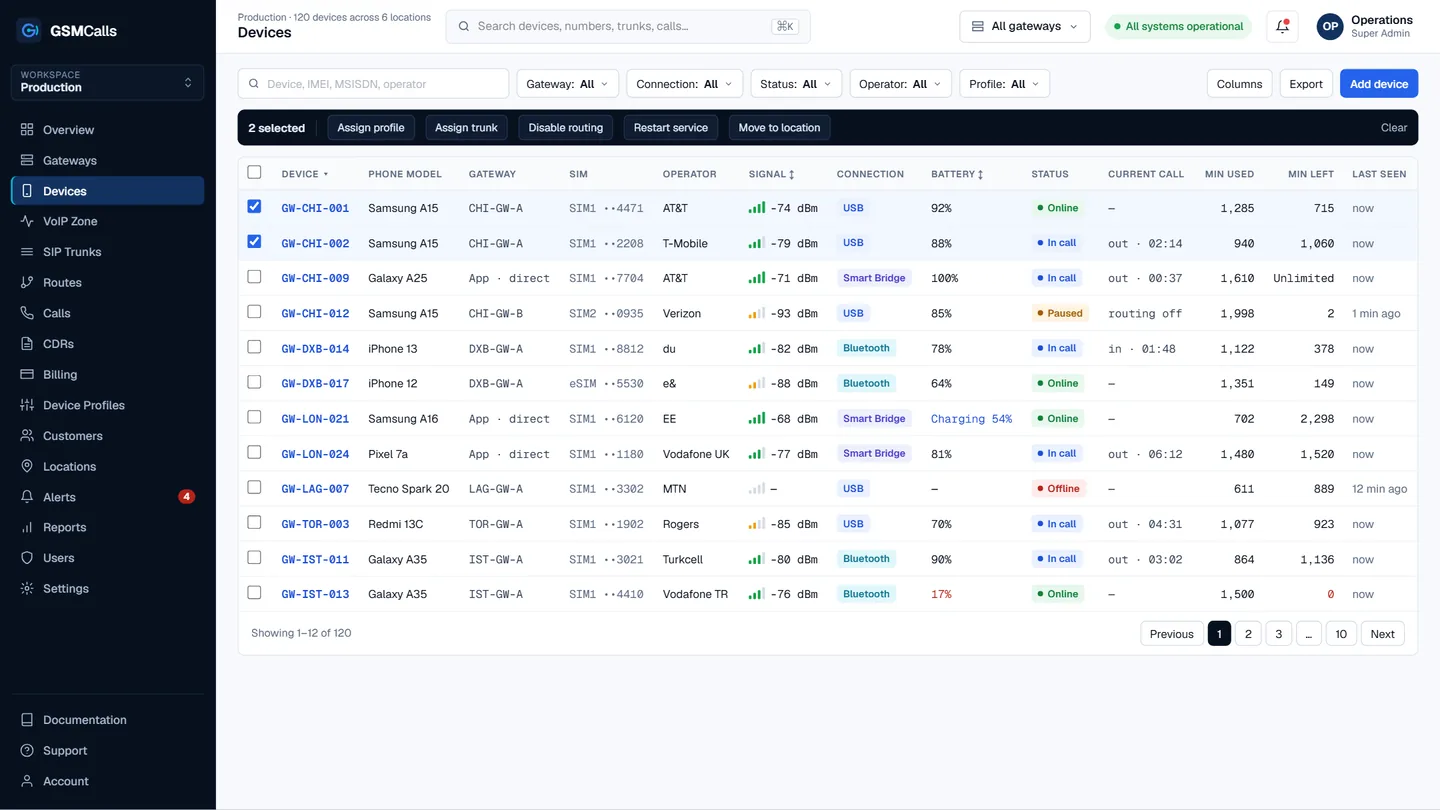
Every Android SIP gateway line appears in one device table with model, operator, signal, connection method, battery and minutes. From there you assign trunks and minute profiles, restart the gateway service remotely and drill into IMEI, SIM and call history. Calls produce CDRs with disconnect causes, so a failing SIM stands out before users complain.
Choosing phones for your Android SIP gateway
Not every handset behaves the same on long-running calls. The compatibility list shows each tested model by connection method with a status of Verified, Beta, Testing or Not Supported. Start with Verified models, keep chargers and ventilation in mind, and use SIMs from carriers whose terms allow your use case. For background on the approach, read using an Android phone as a GSM gateway.
GSMCalls is for lawful, authorised deployments — business lines, PBX mobile trunks and call-centre routes that respect carrier terms. It is not built or supported for SIM-box termination or interconnect bypass; see the acceptable use policy.
Step by step
Set up your Android SIP gateway
1
Step 1: Pick tested phones
Choose Verified Android models from the compatibility list and insert SIMs from your carrier.
2
Step 2: Install and pair
Install the GSMCalls app, choose Smart Bridge, Wireless Connect or USB Connect, and pair the phone with a code from the portal.
3
Step 3: Connect your SIP side
Create a SIP trunk to your PBX or softswitch, set codecs and ACLs, and add the phones to a routing group.
4
Step 4: Place a test call
Dial out and in, then check the CDR, audio and device health before going live.
Prices in USD per month. Taxes, carrier airtime and SIM costs are not included. Features marked Coming Soon are not yet available.Compare all four plans
FAQ
Android SIP gateway questions
Still unsure? Talk to an engineer — we'll map your site to the right architecture.
Can an Android phone really work as a SIP gateway?
+−
Yes. The phone handles the mobile call on its SIM while the GSMCalls app and a connection method carry the audio to a SIP trunk, so your PBX sees an ordinary SIP line.
Do I need to root the phone?
+−
No. GSMCalls works with stock Android. Phones keep receiving security updates and can be replaced with another tested model without special preparation.
Do I need a computer at the site?
+−
Not with Smart Bridge: the microcontroller sits on the phone’s USB-C and the app streams audio to the cloud over Wi-Fi or mobile data. Wireless Connect and USB Connect use a gateway PC.
Which Android phones are supported?
+−
Tested models are listed on the compatibility page with a status of Verified, Beta, Testing or Not Supported for each connection method.
Can I use it for wholesale termination?
+−
No. GSMCalls is for lawful, authorised deployments. SIM-box termination and interconnect bypass are prohibited by the acceptable use policy.
GSMCalls is built for lawful, authorised deployments. You remain responsible for local telecommunications regulations and your carriers’ terms — see the acceptable use policy.
Build Your Mobile Gateway Infrastructure
Connect a few phones or manage hundreds of devices across multiple locations from one platform.