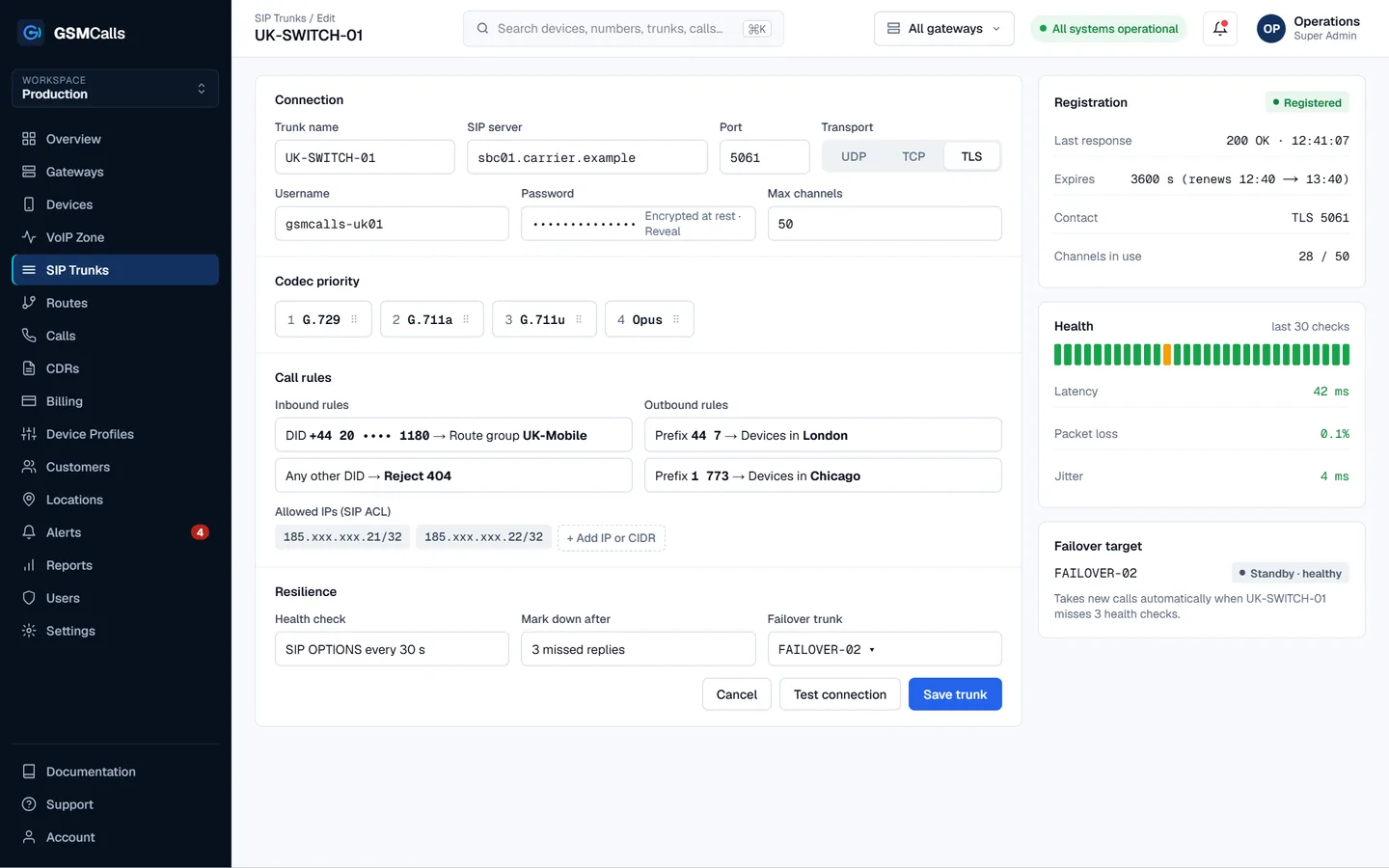
To use a GSM gateway with FreePBX, you add it as a chan_pjsip SIP trunk, then point outbound and inbound routes at it. GSMCalls presents your mobile phones to FreePBX as a standard SIP trunk, so mobile lines appear alongside your other carriers without a hardware gateway in the rack.
Why teams choose GSMCalls as their GSM gateway for FreePBX
Standard chan_pjsip trunk — no FreePBX modules to install
Registration or IP authentication
G.711 A-law or μ-law, plus G.722 where your phones support it
Outbound routes by dial pattern, inbound routes by DID
Mobile lines managed and monitored in the GSMCalls portal
Works with Smart Bridge, Wireless Connect and USB Connect
How a GSM gateway connects to FreePBX
FreePBX is a web interface on top of Asterisk, and it treats any external voice provider as a trunk. A GSM gateway is just another provider: FreePBX sends it outbound calls over SIP, and it delivers inbound mobile calls back to FreePBX. With GSMCalls, the gateway side lives in the cloud and your phones at the site carry the calls, so FreePBX only needs one PJSIP trunk.
Before touching FreePBX, create a SIP trunk in the GSMCalls portal and note:
The SIP host, port and transport (UDP, TCP or TLS)
Username and secret if you use registration, or your FreePBX public IP for an IP ACL
The codec order — G.711 A-law or μ-law first, G.722 if your phones use it
Which phones or routing group the trunk should use for outbound calls
Configuring the FreePBX PJSIP trunk
In FreePBX, go to Connectivity › Trunks › Add Trunk › Add SIP (chan_pjsip) Trunk. On the General tab give it a name and set the outbound caller ID and a maximum channel count that matches your phones. On the pjsip Settings tab enter the username, secret and SIP server from the portal, set Authentication to Outbound and Registration to Send — or None for IP-based trunks — and keep the context as from-pstn.
On the Codecs tab, enable only what you need and order them to match the portal: ulaw in North America, alaw in most other regions, with g722 added for wideband. Why the choice matters is covered in G.711 A-law vs μ-law.
Outbound and inbound routes
Outbound: under Connectivity › Outbound Routes, create a route with dial patterns for the numbers that should go out over mobile lines — for example a local mobile prefix — and place the GSMCalls trunk first in the trunk sequence. Add other trunks after it as fallbacks.
Inbound: under Connectivity › Inbound Routes, create a route whose DID number matches what GSMCalls sends for each line, and set the destination to a ring group, IVR or extension. A catch-all route with no DID works for a single line. The difference between DID and DOD is explained in SIP trunks, DID and DOD.
Testing and troubleshooting
Check the trunk status in FreePBX (Reports › Asterisk Info › Registries) and in the GSMCalls portal. Then call out and in, and compare the call in the FreePBX CDR with the GSMCalls CDR, which records the mobile disconnect cause. One-way audio usually means a NAT or firewall issue on the FreePBX side; registration failures usually mean a credential or ACL mismatch. Use mobile lines only for lawful, authorised traffic under your carrier’s terms.
Step by step
Set up your GSM gateway for FreePBX
1
Step 1: Create the trunk in GSMCalls
Add a SIP trunk in the portal, choose transport and codecs, and note the host and credentials.
2
Step 2: Add a chan_pjsip trunk
In FreePBX, add a SIP (chan_pjsip) trunk with the portal’s host, username and secret.
3
Step 3: Set codecs
Match the codec order to the portal: alaw or ulaw first, g722 for wideband.
4
Step 4: Build routes
Create an outbound route with dial patterns and an inbound route for each DID.
5
Step 5: Apply and test
Apply Config, confirm registration, and place test calls in both directions.
Prices in USD per month. Taxes, carrier airtime and SIM costs are not included. Features marked Coming Soon are not yet available.Compare all four plans
FAQ
GSM gateway for FreePBX questions
Still unsure? Talk to an engineer — we'll map your site to the right architecture.
GSMCalls is built for lawful, authorised deployments. You remain responsible for local telecommunications regulations and your carriers’ terms — see the acceptable use policy.
Build Your Mobile Gateway Infrastructure
Connect a few phones or manage hundreds of devices across multiple locations from one platform.