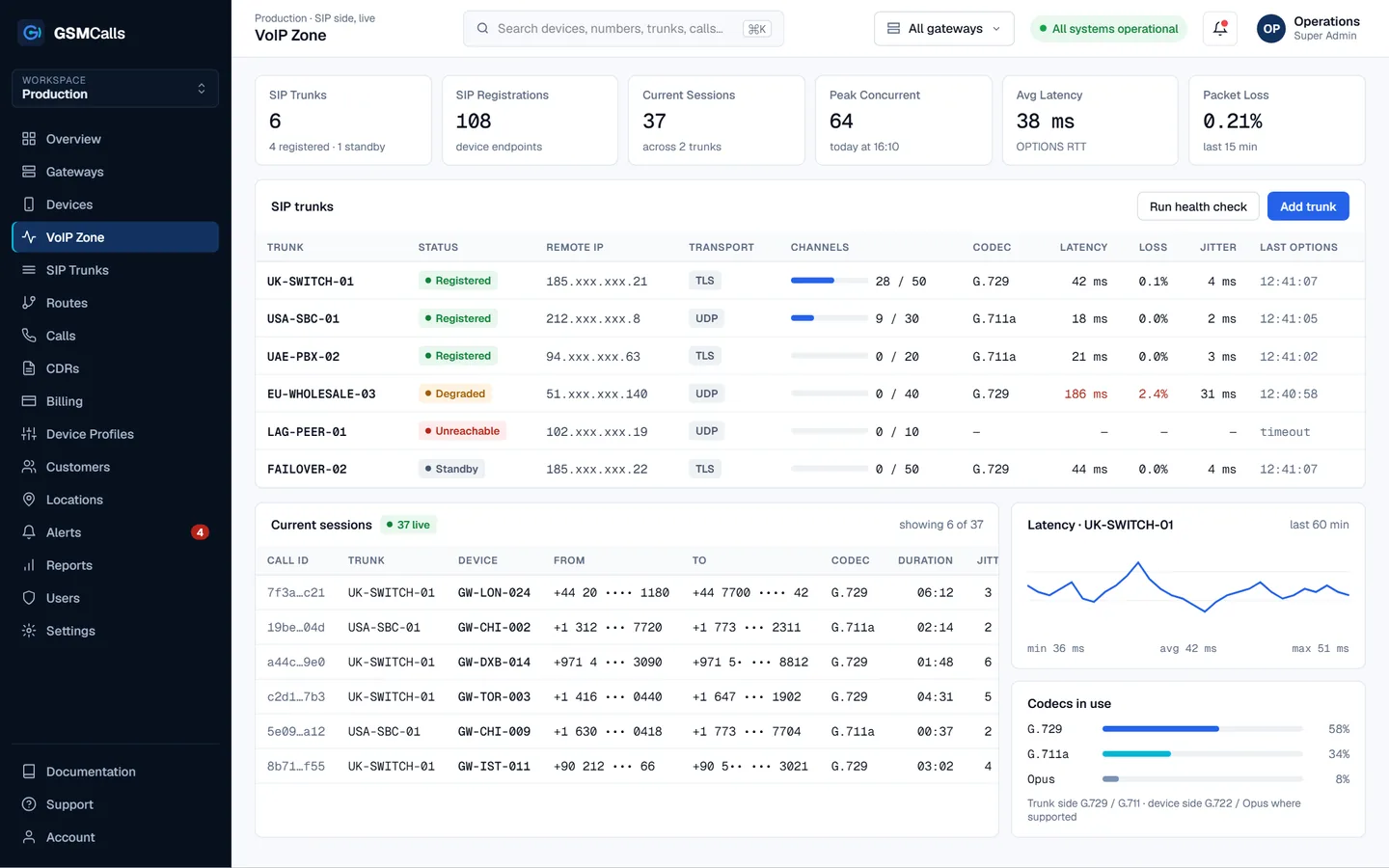
To add a GSM gateway to 3CX, create a SIP trunk from the generic SIP trunk template, enter the gateway’s host and credentials, then add inbound rules for its numbers and outbound rules for the prefixes it should carry. GSMCalls presents your mobile phones as that one SIP trunk, so no hardware gateway is needed.
Why teams choose GSMCalls as their GSM gateway for 3CX
Uses the 3CX generic SIP trunk template
Registration-based or IP-based authentication
Inbound rules per DID, outbound rules per prefix
G.711 A-law or μ-law, with G.722 where supported
Mobile lines monitored in the GSMCalls portal
Phones connect by Smart Bridge, Bluetooth or USB
Mobile lines in 3CX without a hardware gateway
The usual way to give 3CX mobile lines is a hardware GSM gateway with SIM slots on the LAN. GSMCalls replaces that box with ordinary mobile phones and a cloud platform. 3CX sees a single SIP trunk; the platform decides which phone carries each call and records it in a CDR.
GSMCalls is not an official 3CX-certified provider template; it connects through the generic SIP trunk template that 3CX offers for any standards-based provider. Menu names differ slightly between 3CX versions, so treat the steps below as a map rather than a click-by-click guide.
Before you start
Create a SIP trunk in the GSMCalls portal and collect:
SIP host and port, and the transport (UDP, TCP or TLS)
Authentication ID and password for registration trunks, or your 3CX public IP for an IP ACL
The number of simultaneous calls — normally the number of phones in the routing group
In the 3CX admin console, open the SIP trunks section and add a trunk. Choose your country and the generic SIP trunk template, then enter the main trunk number. Fill in the registrar or server host and port, pick registration-based or IP-based authentication, and enter the credentials. Set the simultaneous calls to match your phones.
In the trunk’s codec settings, put G.711 A-law or μ-law first — whichever your region uses; see G.711 A-law vs μ-law — and add G.722 if your 3CX clients and desk phones use wideband. Save and check that the trunk shows as registered.
Inbound and outbound rules
Inbound rules decide where calls from the mobile lines go. Create a rule per DID — or one for the main trunk number — and send it to an extension, ring group, queue or digital receptionist, with separate office-hours and out-of-hours destinations if you need them.
Outbound rules decide which calls leave through the trunk. Add a rule that matches the prefixes you want on mobile lines, such as a national mobile range, select the GSMCalls trunk as the first route, and strip or prepend digits so the number reaches the network in the format your carrier expects. Keep another trunk as a second route for fallback.
Monitoring and troubleshooting
The 3CX dashboard shows trunk registration; the GSMCalls portal shows each phone’s signal, battery and call status and why a mobile call failed. If calls connect with no audio, check that 3CX’s public IP and RTP ports are configured and that nothing on the path rewrites SIP. The concepts behind trunks, DIDs and outbound dialling are in SIP trunks, DID and DOD explained. Use mobile lines for lawful, authorised traffic only.
Step by step
Set up your GSM gateway for 3CX
1
Step 1: Create the trunk in GSMCalls
Add a SIP trunk in the portal, set codecs and ACLs, and note host and credentials.
2
Step 2: Add a generic SIP trunk
In 3CX, add a trunk from the generic SIP trunk template and enter the host, port and authentication.
3
Step 3: Set codecs and channels
Order alaw or ulaw first, add g722 if needed, and match simultaneous calls to your phones.
4
Step 4: Create rules
Add inbound rules per DID and an outbound rule for the prefixes to send over mobile lines.
5
Step 5: Test both ways
Place inbound and outbound calls and compare the 3CX call log with GSMCalls CDRs.
Prices in USD per month. Taxes, carrier airtime and SIM costs are not included. Features marked Coming Soon are not yet available.Compare all four plans
FAQ
GSM gateway for 3CX questions
Still unsure? Talk to an engineer — we'll map your site to the right architecture.
No. GSMCalls connects through the generic SIP trunk template that 3CX provides for standards-based SIP providers; it is not listed as a certified 3CX provider.
Can I use an Android phone as a GSM gateway for 3CX?
+−
Yes. GSMCalls connects Android phones by Smart Bridge, Bluetooth or USB and presents them to 3CX as one SIP trunk.
How many simultaneous calls can the trunk carry?
+−
One call per phone in the routing group. Set 3CX’s simultaneous calls to match.
Can I keep my existing carrier trunk?
+−
Yes. Use outbound rules to send selected prefixes over mobile lines and everything else, or fallback traffic, over your existing trunk.
GSMCalls is built for lawful, authorised deployments. You remain responsible for local telecommunications regulations and your carriers’ terms — see the acceptable use policy.
Build Your Mobile Gateway Infrastructure
Connect a few phones or manage hundreds of devices across multiple locations from one platform.